Small Text |
Big Text
Password protect your Mac's screensaver
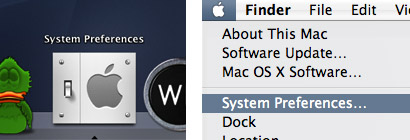
Protecting your Mac's screensaver with a password is easy. Start out by opening System Preferences. If the icon in not in your dock, you can access it by opening the "apple menu" that is always visible in the top left corner of your Mac's screen.
The screensaver's password settings are found under the "Security" icon. In the pane that appears, tick the box that says "require password immediately after sleep or screensaver begins". On newer Macs, you can change the timing so that the screensaver's password protection only kicks in after a certain amount of time.
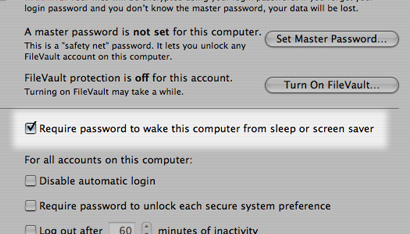
The next time the screensaver is running you will be prompted for your Mac's password before you can start using it.



No comment on this article